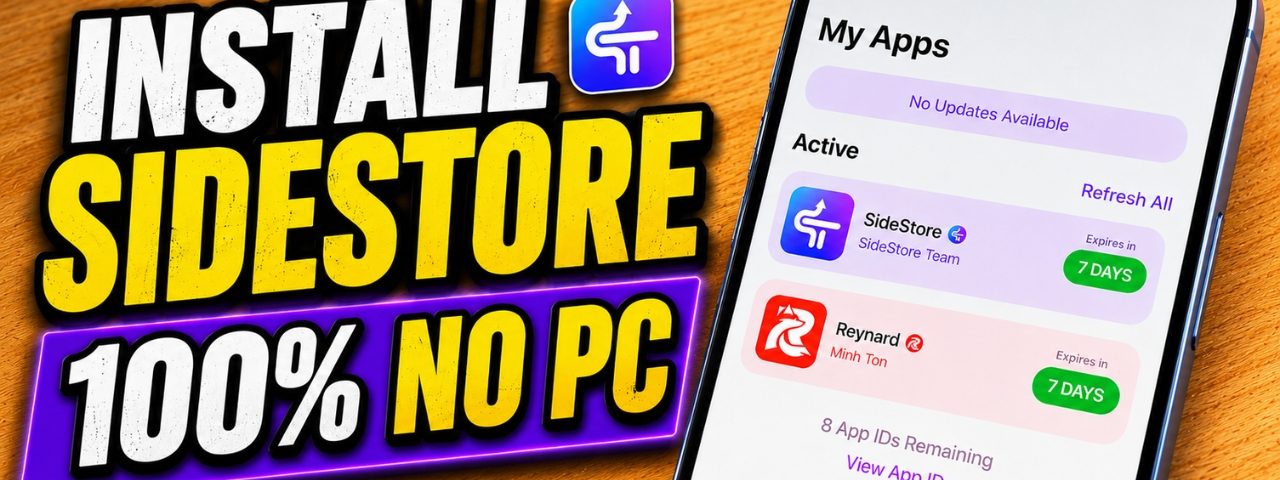
Watch the Video Tutorial
Want to install SideStore on iOS without using a computer? In this video tutorial, I show the full SideStore No PC setup method for iPhone and iPad users.
SideStore is one of the most popular IPA sideloading tools for iOS. With this no computer method, you can install SideStore directly on your device and use it to sideload IPA files more easily. You can also check other IPA installation tools on AppleJr.
What This Video Is About
This video is made for iPhone and iPad users who want to install SideStore without using a Windows PC or Mac. The tutorial shows the full no computer setup process, including how to install the required apps, complete the setup, and prepare SideStore for IPA sideloading.
If you are new to SideStore, I recommend watching the video from start to finish because the setup includes several important steps that are easier to follow visually.
What You Will Learn in This Video
- How to install SideStore on iOS without a computer
- How to set up SideStore directly from iPhone or iPad
- How to complete the SideStore No PC method
- How to trust the developer profile if required
- How to open SideStore after installation
- How to use SideStore to sideload IPA files on iOS
- How to refresh sideloaded apps without depending on a PC every time
Why Install SideStore Without a Computer?
Many IPA installation methods on iOS require a computer during the setup process. This can be inconvenient if you only have an iPhone or iPad and want a more flexible way to install and manage sideloaded apps.
With the SideStore No PC method, you can install SideStore without connecting your device to a computer. Once everything is set up, SideStore can help you install IPA files and manage your sideloaded apps directly from your iOS device.
Video Chapters
- Introduction to the SideStore No PC method
- Preparing your iPhone or iPad
- Installing the required apps
- Completing the SideStore setup process
- Trusting the developer profile
- Opening SideStore for the first time
- Signing in and preparing SideStore
- Installing IPA files with SideStore
- Refreshing sideloaded apps
- Final result and important notes
Important Notes Before Watching
Before following the video, make sure your iPhone or iPad is connected to a stable internet connection. You may also need to trust the developer profile from iOS Settings after installing SideStore.
If the setup asks for Apple ID verification or a two-factor authentication code, follow the steps shown in the video carefully. This may be required during the SideStore setup process.
After SideStore is installed, you can open it and use it to sideload IPA files directly from your device.
Frequently Asked Questions
Can I install SideStore without a computer?
Yes. This video shows a SideStore No PC method for iPhone and iPad users.
Does this work on iPhone and iPad?
Yes, this method is made for iOS devices including iPhone and iPad.
Can SideStore install IPA files?
Yes. SideStore can be used to sideload IPA files on iOS after the setup is complete.
Do I need to trust the developer profile?
In many cases, yes. After installation, go to Settings, open VPN & Device Management, and trust the related developer profile if required.
Should I watch the full video?
Yes. The full video shows each step visually, making it easier to complete the SideStore No PC setup correctly.
Watch the Complete SideStore No PC Guide
For the full step-by-step setup, watch the video tutorial above. The video shows the complete process on iPhone so you can follow each step easily.
Final Thoughts
That is the SideStore No PC method to install SideStore on iOS without using a computer. If you want the complete setup process, watch the full video tutorial above and follow each step carefully.
If this tutorial helps you, make sure to subscribe to the channel and join our Telegram channel for more iOS sideloading guides, IPA installation tutorials, no computer methods, and AppleJr updates.