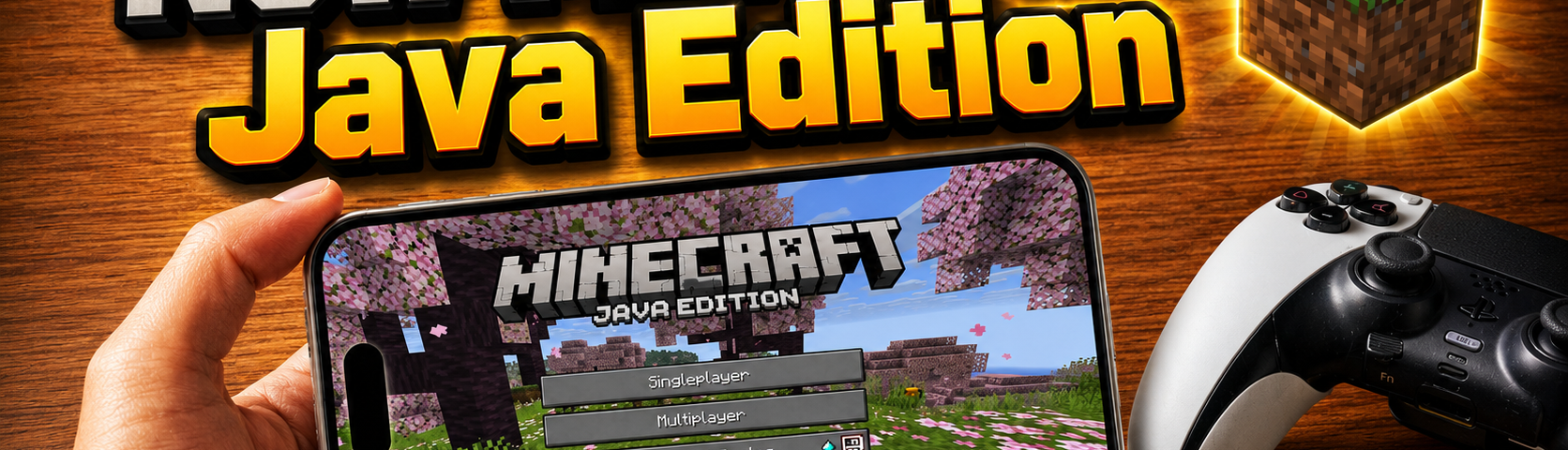
Watch the Video Tutorial
Want to play Minecraft Java Edition on iPhone or iPad? In this video tutorial, I show how to install Minecraft Java Edition on iOS using PojavLauncher Amethyst.
This guide is made for iPhone and iPad users who want to run Minecraft Java Edition through PojavLauncher with the Amethyst method. Watch the full video below and follow each step carefully.
About This Video
This video shows how to install and run Minecraft Java Edition on iPhone and iPad using PojavLauncher Amethyst. If you want to play the Java version of Minecraft on iOS, this tutorial explains the full setup process in a visual step-by-step guide.
PojavLauncher allows users to run Minecraft Java Edition on mobile devices, while Amethyst is used in this setup to help with the required iOS environment. Because the setup has several important steps, I recommend watching the full video from start to finish.
What You Will Learn in This Video
- How to install PojavLauncher on iPhone and iPad
- How to set up PojavLauncher Amethyst on iOS
- How to prepare your device before opening Minecraft Java Edition
- How to enable the required setup for better compatibility
- How to launch Minecraft Java Edition on iOS
- Important notes before playing Minecraft Java on iPhone or iPad
Why Use PojavLauncher Amethyst?
Minecraft Java Edition is normally made for desktop platforms, but many iPhone and iPad users want a way to experience Minecraft Java on iOS. PojavLauncher makes this possible by providing a launcher environment for Minecraft Java Edition.
With the Amethyst method, the setup can be completed on iOS so users can open PojavLauncher and run Minecraft Java Edition on supported devices. The video shows the full process clearly so you can follow each part correctly.
Before You Start
Before following the tutorial, make sure your iPhone or iPad has a stable internet connection and enough storage space. You should also make sure your device is ready for sideloaded apps and any required iOS setup shown in the video.
You may also need a valid Minecraft Java Edition account to log in and play the game. This tutorial is focused on the installation and setup process, not on bypassing Minecraft ownership or account requirements.
Video Chapters
- Introduction to Minecraft Java Edition on iOS
- What PojavLauncher Amethyst is used for
- Preparing your iPhone or iPad
- Installing the required apps
- Setting up PojavLauncher Amethyst
- Opening PojavLauncher on iOS
- Launching Minecraft Java Edition
- Testing the final result
- Important notes and conclusion
Frequently Asked Questions
Can I play Minecraft Java Edition on iPhone?
Yes, this video shows how to install and run Minecraft Java Edition on iPhone using PojavLauncher Amethyst.
Does this work on iPad?
Yes, the tutorial is made for both iPhone and iPad users who want to run Minecraft Java Edition on iOS or iPadOS.
Do I need PojavLauncher?
Yes. PojavLauncher is the launcher used to run Minecraft Java Edition on iOS devices in this tutorial.
What is Amethyst used for?
Amethyst is part of the iOS setup shown in the video. It helps complete the required environment so PojavLauncher can run properly on supported devices.
Do I need a Minecraft Java account?
Yes, you should use a valid Minecraft Java Edition account to log in and play the game.
Should I watch the full video?
Yes. The setup includes several steps that are easier to follow visually, so watching the full video is recommended.
Watch the Complete Minecraft Java iOS Tutorial
For the full step-by-step guide, watch the video tutorial above. The video shows the complete PojavLauncher Amethyst setup for iPhone and iPad users. You can also browse more iOS tools and IPA utilities on AppleJr.
Final Thoughts
That is how to install Minecraft Java Edition on iPhone and iPad using PojavLauncher Amethyst. If you want the complete setup process, watch the full video tutorial above and follow each step carefully.
If this tutorial helps you, make sure to subscribe to the channel and join our Telegram channel for more iOS tutorials, sideloading guides, PojavLauncher updates, Minecraft Java iOS guides, and AppleJr content.