Watch the Video Tutorial
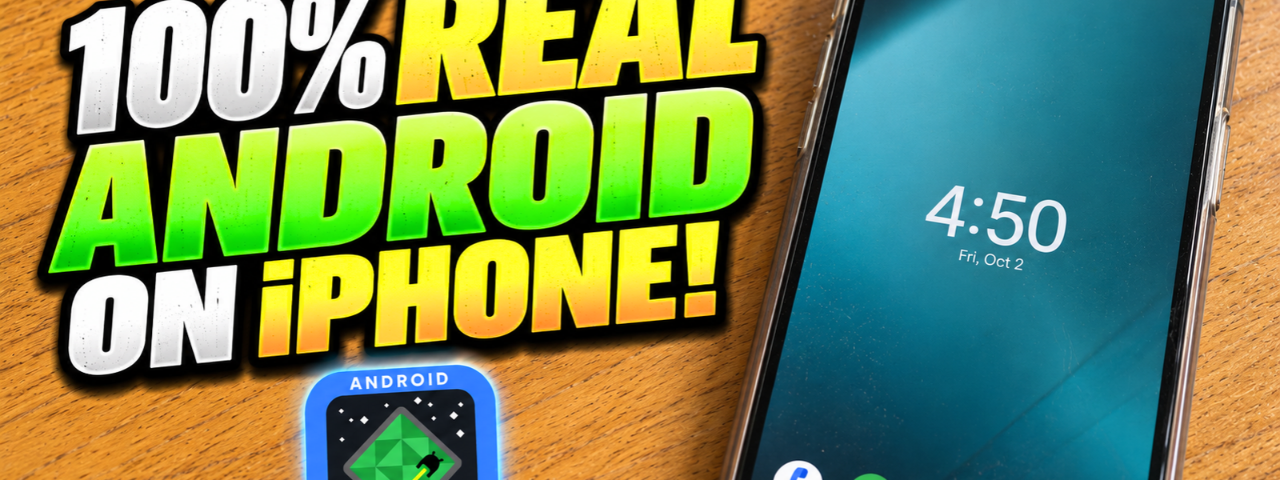
Yes, it is now possible to run Android on an iPhone or iPad without jailbreaking your device.
Instead of replacing iOS, this method launches a complete Android environment directly on your Apple device. You can boot into Android, complete the normal Android setup process, explore the operating system, and even test Android applications.
In this guide, I’ll show you how to install Android on iPhone and iPad step by step, including how to enable JIT, download the required Android image, and start Android successfully.
Watch the full video tutorial here:
How to Install REAL Android on iPhone & iPad — No Jailbreak!
Can You Really Run Android on an iPhone?
Yes.
This method allows Android to run as a virtualized environment inside iOS rather than replacing the iPhone operating system completely.
Your iPhone will still use iOS normally. When you want to use Android, you simply launch the Android environment from the required app.
This is very different from installing a simple Android-style launcher or theme. You are actually booting an Android operating system environment with its own setup interface and Android apps.
However, this is not a native Android installation or dual boot system. iOS remains installed on the device.
What You Need
Before starting, make sure you have:
- A compatible iPhone or iPad
- A stable Wi-Fi connection
- Enough free storage space
- The required Android launcher app
- A method to enable JIT
The Android image is around 4 GB and may be downloaded in multiple parts, so using a fast and stable internet connection is highly recommended.
You should also keep several additional gigabytes of storage available because Android needs space to prepare its filesystem and boot environment.
Step 1: Install the Required Apps
The first step is installing the required apps on your iPhone or iPad.
Depending on the current installation method, you may need an iOS sideloading solution to install the Android launcher and JIT utility.
After installing everything successfully, open the Android launcher once so iOS can initialize the application.
Do not start downloading the Android system image yet. JIT should be enabled first for better compatibility and performance.
Step 2: Open StikDebug and Enable JIT
Launch StikDebug on your iPhone or iPad.
Once the app opens, tap Refresh. Your installed applications should then appear inside StikDebug.
Find the Android launcher app, select it, and enable JIT.
JIT, or Just-In-Time compilation, allows applications such as virtual machines and emulators to execute code much faster than normal iOS restrictions would otherwise allow.
After JIT has successfully been enabled, the Android launcher may automatically open.
If the app does not open automatically, return to your Home Screen and launch it manually.
Step 3: Download the Android Image
Inside the launcher, begin downloading the Android system image.
The complete Android image is around 4 GB, and the download may be divided into two separate parts.
Do not close the application while the download is running.
The time required depends on your internet connection. A fast Wi-Fi connection will make the process significantly easier.
Once both parts are downloaded successfully, the launcher will prepare the files required for Android.
Step 4: Select Full Screen Android
After the Android image finishes downloading, you should see available boot options.
Select Full Screen Android.
The app will now begin preparing Android for its first boot.
The first startup usually takes longer than future boots because Android needs to initialize its system files and prepare the virtual device.
If the screen appears to remain on the loading process for a while, this does not necessarily mean the app has crashed.
Step 5: Check the Android Boot Log
If Android appears to take too long to start, tap the terminal icon near the top of the application.
This lets you view the boot log and see whether Android is still preparing in the background.
During the first boot, several initialization processes may run before Android finally displays its setup screen.
Normally, you only need to wait a few minutes.
Avoid force-closing the app while Android is still preparing.
Step 6: Complete the Android Setup
Once Android finishes booting, you should see the familiar Android setup process.
Continue the setup just like you would when configuring a new Android phone or tablet.
Depending on the Android image being used, you may be able to configure language, network settings, display options, Android preferences, and supported applications.
After setup is complete, you will arrive at the Android Home Screen.
You are now running Android on your iPhone or iPad.
Can You Install APK Files on iPhone Using Android?
One of the most interesting possibilities is testing APK files on an iPhone through the Android environment.
Normally, APK files cannot run directly on iOS because Android and iOS use completely different application formats.
iPhone applications normally use IPA packages, while Android applications use APK packages.
However, because this method creates an Android environment inside your iPhone or iPad, compatible APK files may be installed inside Android, rather than directly into iOS.
So when people search for how to install APK files on iPhone, this method is much closer to a real solution than simply renaming or converting an APK file.
APK compatibility can still depend on the Android build, architecture, graphics support, available services, and the specific application you are trying to use.
Does This Require Jailbreak?
No jailbreak is required for this method.
Your main iOS installation remains unchanged.
That makes this method especially interesting for users who want to experiment with Android while continuing to use their iPhone normally.
JIT may still need to be enabled again depending on your iOS version, device, and the JIT method being used.
Android Performance on iPhone and iPad
Performance depends heavily on the device.
Newer iPhones and iPads generally have faster processors and more memory, which can improve virtualization performance.
Basic Android navigation and lightweight applications may work better than demanding Android games or apps that depend heavily on hardware acceleration.
Remember that Android is not running directly as the native operating system of the iPhone.
There is an additional virtualization layer between Android and the Apple hardware.
Because of this, performance should not be expected to match a modern Android flagship phone.
Is It Safe?
Running Android this way does not replace your iOS installation.
Your normal iPhone operating system remains intact, and you can return to iOS normally after closing the Android environment.
As with any sideloaded application, only install apps and files from sources you trust.
Final Thoughts
Running Android on an iPhone or iPad without jailbreak is one of the most interesting things you can currently do with iOS virtualization.
You can boot a real Android environment, test Android features, explore the interface, and potentially install compatible APK files directly inside Android.
If you want to see the complete process from start to finish, watch the full tutorial below.
Video Tutorial:
How to Install REAL Android on iPhone & iPad — No Jailbreak!
Frequently Asked Questions
Can I install Android on iPhone without jailbreak?
Yes. This method runs Android inside a virtualized environment on iOS without replacing the original iPhone operating system.
Can I install APK files on iPhone?
You cannot normally install APK files directly on iOS. However, compatible APK files may be installed inside the Android environment running on your iPhone or iPad.
Does Android replace iOS?
No. iOS remains installed and continues to be your main operating system.
Do I need JIT?
JIT is important for improving performance and compatibility when running virtualization or emulation apps on iOS.
How large is the Android image?
The Android image is approximately 4 GB and may be downloaded in multiple parts.
Can I use this on iPad?
Yes. The method can also work on supported iPads, depending on the device and software compatibility.